See all categories.
Find privileged technical references for CCM IT managers. Choose a task area below, or use search for the system and the action you need.
Find identity, authentication and scoped-role references.

Compare the purposes of Entra audit, sign-in and provisioning logs, and find the linked Microsoft references for each log type.
Find app consent requests in Entra Enterprise Applications. The notes identify the review location; they do not establish the current approval owner. The Access Consent Requests can be reviewed at: Direct Link: https://entra.microsoft.com/#view/Microsoft_AAD_IAM/StartboardApplicationsMenuBlade/~/AccessRequests
Look up the recovered Graph settings for restricting profile-photo updates through Microsoft 365 web portals. The notes include a retired mailbox-policy method and incomplete command fragments, not a validated configuration procedure. Source ticket: https://servicedesk.ccmschools.app/helpdesk/tickets/119490
Find the CCM Primary Curriculum Forum in Teams and its Entra dynamic-membership rule. The CCM Primary Curriculum Forum in Microsoft Teams may be used by teachers to share, connect, collaborate and ask questions about the Units. The CCM writing team are keen for feedback from teachers, the CCM Primary Curriculum Forum is the place to provide that feedback.
Review the certificate-naming, exportability and output fields used in a recovered PowerShell certificate-creation example. The upload guide it depends on is held, and the command fragments are not a complete app-registration procedure.
The Enrol HQ source contains an instruction to reorganise another note, rather than configuration steps. That linked configuration is on private review hold; no standalone setup procedure is available here. The source contains an editorial reminder to reorganise Enrol HQ Ent App and DNS Configuration into subpages. The linked note is held; no configuration sequence is reproduced here.
Distinguish app registrations from enterprise applications when reviewing ownership, authentication and API permissions for unattended Microsoft 365 scripts.
Find the recorded Adobe enterprise-app link and Teams PowerShell examples. The dynamic-user-group note is incomplete, and the Adobe access count is a dated observation.
Review the API-permission and Entra-role assignments recorded for Exchange Online app-only PowerShell access. The app needs both kinds of assignment. For an Exchange App to connect to via powershell you need to set the correct API permissions and assign an Exchange role to the App.
Open the Entra administration areas for users, groups, devices, applications, roles and Conditional Access from this directory of portal links.
Review introductory notes on Microsoft Graph permission and consent types. The source is unfinished and includes a video reference; it does not provide a complete permission-selection procedure.
Look up the Senso enterprise applications exported from Entra on 25 February 2026, with recorded integration settings and a Teams-class synchronisation issue.
Locate the per-user MFA page and search for an account when reviewing manually disabled MFA. The recovered steps cover navigation and user lookup, not a complete MFA-status audit. References:
Compare manual CSV import, Graph API management and the Token2 Inventory App for hardware tokens. The notes describe trade-offs and the initial implementation choice. There are 3 methods for managing tokens. The source recommends the Token2 Inventory App for the initial implementation, with Graph API automation as a possible later approach for larger deployments. Related topic pages describe the captured app setup and use.
Check what Token2 Inventory App's Import Only option does before choosing it: tokens are uploaded without user assignment or activation, with management limitations noted below. Import Only is useful to upload the tokens to Azure without assigning to a user or activating. It allows taking the .csv file directly from the manufacturer and uploading without having to edit the .csv to assign users. It gets the tokens into Azure without assigning to a user and enables managing the tokens in the App
Find the recorded Token2 actions for assigning, activating, unassigning and deleting imported tokens, including the handling notes for lost or stolen devices.
Find the recorded Token2 Inventory App installation route, Entra app permissions and initial sign-in details. The notes distinguish the standalone Windows app from the web app. The Token2 TOTP Inventory App comes in 2 flavours.
Review a single token-assignment failure associated with old authentication methods. Assignment succeeded after those methods were removed in that case; the cause was suspected, not confirmed as a general fix.
Choose among Token2 CSV Operations when already signed in to the Inventory App: Import Only, Import & Assign, or Import, Assign & Activate. Once logged onto the Token2 Inventory App, uploading Tokens is as simple as selecting the CSV Operations button.
Follow the recorded user self-service activation route for an imported hardware token. The token must already exist in Azure without an assigned user or activation. Once the Tokens are imported using the Token2 Inventory App, it is not necessary to assign a user to a token and activate. A user can self-assign and activate tokens via their Security Info page.
Look up the Token2 model recorded for the initial deployment and the ordering-account considerations for retrieving token seeds. CCM recommend each college purchase Token2 C202 Classic TOTP Hardware tokens. Token2 c202 hardware token. These are pre-programmed tokens that use a SHA1 hash as the secret.
Understand the hardware-token option described for staff who cannot use a personal phone for MFA. The background includes historical policy context, not current legal or purchasing advice. All state governments are in the process of reviewing Early Childhood Education and Care centres, with a view to implementing bans on personal mobile devices. Some jurisdictions have already implemented the new legislation, such as South Australia.
Check the Intune roles recorded as becoming active after activation of a school's IT Technician PIM group, and find their assignments.
Inspect eligible and active role assignments for a PIM group, using CCM: Role - Microsoft Application Administrator as the worked example. SCENARIO: Discover what roles are activated by "CCM: Role - Microsoft Application Administrator" CCM: Role - Microsoft Application Administrator
Distinguish an Intune role from its assignments and the included or excluded groups, using the recovered assignment example.
Review the explicit group-scoping requirement recorded for the School Administrator role and the automation described as maintaining those scopes.
Look up Intune report-export permissions and the portal route to Intune role definitions.
Look up the roles, scopes and activation distinctions recorded for school IT technicians and administrators. These notes describe the captured assignments, not an access grant or current approval roster.
Look up the additional App Control for Business and report-viewing permissions recorded for the custom School Administrator - Extended role.
Compare eligible and active PIM group memberships with eligible and active roles, then review the role changes recorded when a group is activated.
Prepare Windows images, apply application controls and manage endpoints.
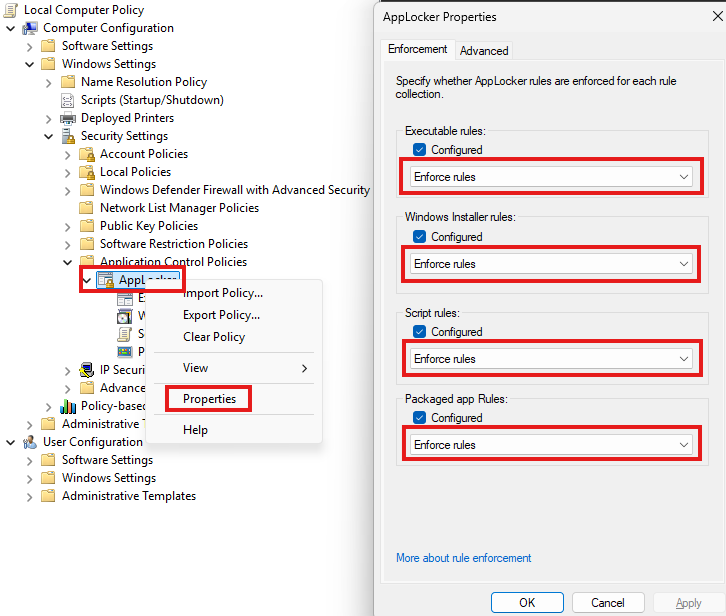
Compare the default and custom AppLocker rule collections recorded in Group Policy, including audit versus enforcement and the exception for packaged-app defaults. The broad publisher rules are captured examples requiring review. AppLocker needs to be "Configured" and set to “Enforce rules” before any apps are controlled. It is possible to configure AppLocker in Audit mode which will write the results of any policies applied to the Event Logs, without blocking apps. This is really useful when creating rules in a complex environment.
Export an existing AppLocker policy to XML and review how the source separates rule collections for Intune custom profiles. The EXE, MSI, script and packaged-app OMA-URIs are listed below. To apply AppLocker policies it is necessary to export from gpedit.msc to an XML file.
Review AppLocker's recorded purpose and the Group Policy editor location for creating exportable rules. The source also flags its maintenance status; this is not a current product-selection decision.
The hardware note contains only an unresolved link to tag-and-testing requirements. No requirements or testing procedure were recovered in this source.
Remove a selected Windows user profile through System Properties, using the recorded administrator PowerShell entry point and User Profiles controls.
Review the scheduled-task example for updating a DeployR install.wim with WimWizard. It expects the script path, image path and task name to be chosen for the deployment. Automating the WimWizard install.wim updating process is as simple as creating a scheduled task. The following powershell code can be used to create and update a scheduled task.
Review the DeployR Autopilot-registration setup using the recorded CCM app registration and certificate authentication. The certificate is created on the DeployR server and its public portion is used later in the sequence. In DeployR there is a step that can be added to a task sequence that registers the device to Autopilot automatically. This will upload the device Hardware Hash and assign a Group Tag for V1, or Upload the Corporate Device Identifier for V2.
Prepare DeployR content and a task sequence for a first deployment. The notes start with a Windows installation image and a WinPE driver pack before boot-image and task-sequence configuration. Before you can reimage any devices you will need to do the following configuration.
Understand the DeployR bare-metal deployment role described in the source, the captured Community-edition limit and the linked product documentation. DeployR is an operating system deployment and bare-metal provisioning tool that allows a standardised method to boot, build, recover and provision devices.
Compare the roles of DeployR and WimWizard in the recorded deployment approach: network-based device imaging and offline Windows image updates. As an alternative to Slipstreaming Windows Installation Media manually and then imaging with USB memory sticks, there are automated tools for both the windows installation media updating and for the imaging process.